Video guide · Setup guide · 3:22
Set up your first parking lot in Lotably
Start in Lots to add your location and capacity. Create a parking rate for that lot, open its QR poster, and preview the driver checkout. Then review fines, staff permissions, branding and payment readiness. This walkthrough follows a sample lot with 60 spaces and a $12 day pass.
In this video
Read the transcript
- 0:00How do you set up a parking lot in Lotably?
- 0:02Let's add a sample lot, create a daily rate, and preview what drivers see.
- 0:08This walkthrough uses Lotably's demo sandbox, with fictional data and no real payments.
- 0:15First, sign up, choose your plan, and verify your email.
- 0:19Add your business details and branded site name, then review the agreement.
- 0:24Once you're in Admin, the dashboard's go-live checklist points you toward the remaining setup tasks.
- 0:31Open Lots and choose Add lot.
- 0:33Enter a name and street address that drivers will recognize.
- 0:37Set the number of spaces.
- 0:39In this example, Cedar Court Lot has sixty.
- 0:42Capacity helps control sales when a lot is full, together with your policy settings.
- 0:48Choose how many courtesy warnings a plate gets at this lot before officers are told to ticket.
- 0:53Here, we've set one.
- 0:56Zero means ticket right away.
- 0:58Keep the lot active so officers can choose it, then save.
- 1:03In Pay-to-park rates, choose Add rate.
- 1:06Give the pass a clear name, enter the price, and choose how long it lasts.
- 1:11Our twelve-dollar Cedar Court Day Pass lasts for the rest of the day.
- 1:15Add a short description to explain that it expires at midnight.
- 1:20Under Where it's sold, select Cedar Court Lot.
- 1:23Check which days the rate is valid, and whether it needs a buying window.
- 1:28Save the rate, then confirm the correct price, location, and on-sale status in the rates list.
- 1:35Back on Lots, open the lot's QR poster.
- 1:38It connects drivers to that location's parking page without an app download.
- 1:43Print the poster, or download its QR image for your own sign.
- 1:48Check the destination before putting signs in the field.
- 1:51Open the driver page and enter a sample plate.
- 1:55Confirm the lot name, your twelve-dollar pass, and the expiration wording.
- 2:00Existing rates sold at all lots can appear here too, so review the whole list.
- 2:05This is a preview; no real purchase is being made.
- 2:09If you're using enforcement, review Violations and fines before officers start.
- 2:14Set the wording, amounts, and any increases for your properties.
- 2:19Saved changes apply to new tickets; an existing ticket keeps the fine it was issued with.
- 2:25Under Users, add your staff and choose Officer, Administrator, or custom access.
- 2:31The invite option lets each person choose their own password.
- 2:35Use the access level that matches their role.
- 2:38Review Branding so pay pages, receipts, and emails show the right business name and support details.
- 2:45Add your logo and colors, and check the printed ticket template if your officers will leave paper notices.
- 2:51In a live account, connect your own Stripe account and complete its requirements before taking online payments.
- 2:58This sandbox shows a simulated connected status.
- 3:01It doesn't connect a bank account or collect real money.
- 3:05Return to the go-live checklist, review your policies, and test the driver and officer workflows for your property.
- 3:12You're ready when the setup matches how your lot operates.
- 3:16Start at lotably dot com slash get started, or explore the demo first.
Recorded October 28, 2026; narration regenerated with Higgsfield on October 30. This narrated walkthrough uses actual Lotably demo screens with fictional Cedar Court Lot data and generated narration. Stripe’s connected status is simulated and no real payment is made. The sample QR code belongs to an expiring demo workspace; use “Try the live demo” to explore your own. Signup and live Stripe onboarding are explained but not performed on camera.
Read more
The whole loop in one minute
Scan, ticket, pay, and the money in your account, then monthly parkers and daily parking.
Watch the one-minute demoQuestions about this guide
What does this setup video cover?
It follows a sample lot from its name, capacity and courtesy-warning setting through a daily parking rate, QR poster and driver checkout preview. It also reviews violations and fines, staff access, branding, Stripe readiness and the launch checklist.
Does the video create an account or take a real payment?
No. It starts with a demo workspace. Signup and live Stripe onboarding are explained, but are not completed on camera. The connected Stripe status is simulated and no real payment is taken. Use the account signup guide for the live onboarding steps.
How can I try the same workflow?
Open the interactive demo to get a fresh sample workspace, then add a lot and rate and preview its QR payment page. The QR code displayed in this recording belongs to an expiring demo, so use your own workspace’s QR poster.
What should I check before taking live parking payments?
Confirm the lot, rates, sales windows and expiration wording on the driver page. Check staff access, fines, branding and support details, connect your own Stripe account and complete its requirements, then test the driver and officer workflows for your property.
More demos and guides
 1:00
Enforcement
The officer app
Scan a plate, catch a pay-machine typo, ticket with a photo, warn first, and record boots and tows.
 0:59
Citation payments
Drivers pay online
Drivers pay by QR code or plate with no app, the money reaches your Stripe account, and contests get reviewed.
 0:56
Monthly parkers
Monthly parkers, handled
Client companies, rosters, billing by card, bank or invoice, the parker portal, and guest passes.
 0:58
Pay-to-park
Sell parking with a QR code
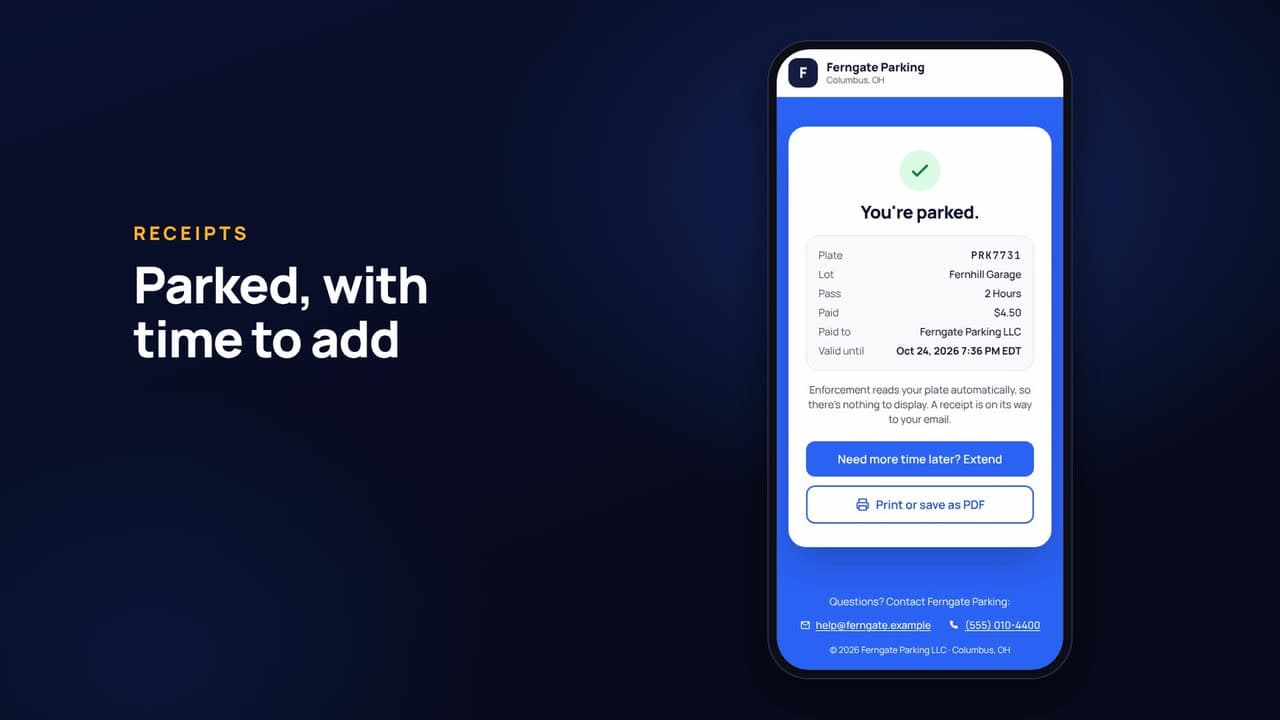
Hourly, daily and overnight rates, a QR poster per lot, no-app checkout, event rates, and instant enforcement.
 0:55
Admin and reporting
Run it all from one console
The dashboard, plate history, your own fines, permissions, reports and exports, property reports, and the audit log.
 2:35
Pricing guide
Is Lotably free?
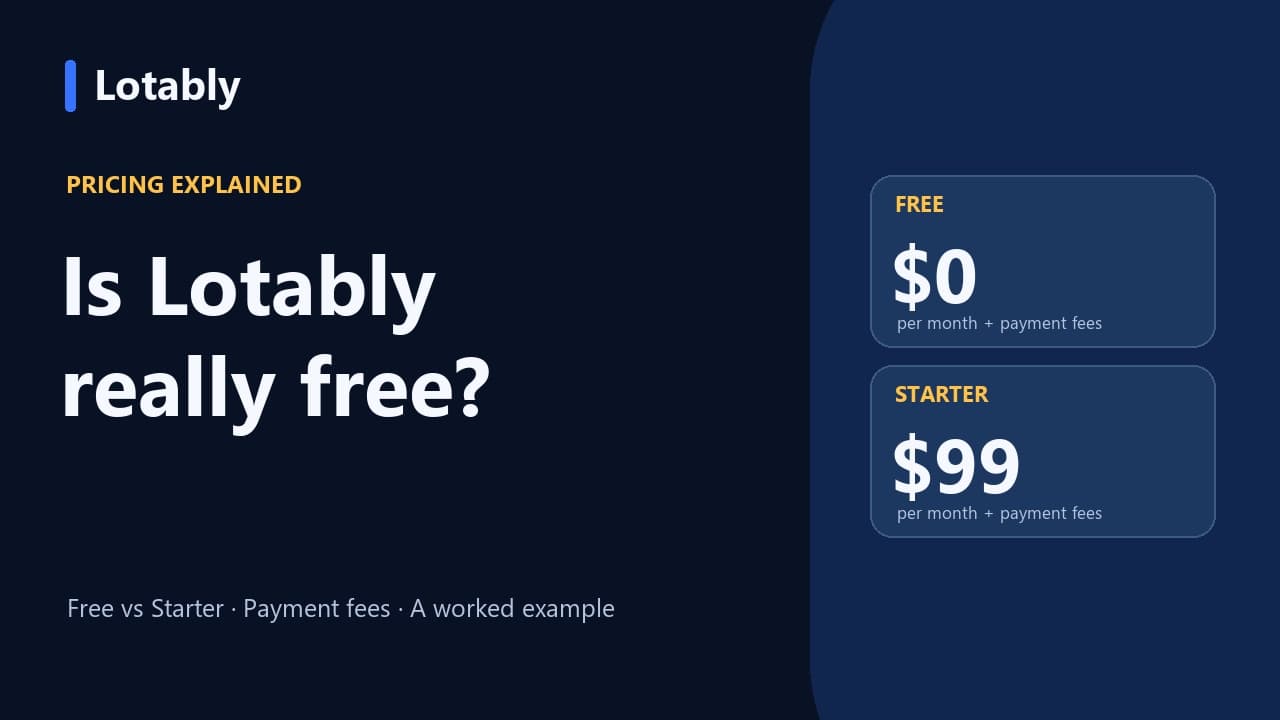
Compare Free and Starter, daily parking fee caps, and a worked citation-payment example.